Setting up Sleep Schedule and Wind Down on iPhone
How iPhone's Sleep Schedule, Wind Down, and Sleep Focus work together, their relationship to your alarm, and practical configuration from the Health app.
Visana Studios
7 min read
The Health app on iPhone carries a hidden piece of sleep infrastructure that most people never quite set up. It sits in the Sleep section, bundled with a bedtime reminder, a pre-sleep routine called Wind Down, and a Focus mode that minimizes everything else. The feature has been in iOS since version 16, and it does something useful if the pieces are configured together. It also does not do what a lot of people assume.
Building a bedtime anchor with Sleep Schedule
Sleep Schedule lives in the Health app under Sleep. To set one up, open Health, tap Sleep in the tabs at the bottom, and scroll to find Sleep Schedule. Tap "Get Started" or edit an existing schedule if you have one. From there you choose a bedtime and a wake time, the days of the week to apply it to, and the target hours of sleep you want to aim for, usually 7 to 9 depending on your age.
The schedule is not a hard boundary. It is an anchor time, and the main thing it does is create an alarm for your wake time. That alarm lives in the Clock app, in the same way the alarm you set manually does. It will ring at your wake time even if Sleep Focus is on, even if your phone is set to silent, and even if Do Not Disturb is enabled. Sleep Focus and Do Not Disturb cannot silence the system alarm. That fact matters a lot, and most people get it backwards. The schedule creates the alarm; the Focus mode does not disable it.
You can have multiple sleep schedules on different days if your week varies, though most people set one schedule for all days and adjust the wake time manually when they know an extra hour of sleep is coming.
Wind Down: a routine that signals bedtime
Wind Down is a 15 to 60 minute period before your scheduled bedtime. Your phone tries to step out of the way during it. You configure Wind Down in the Sleep Schedule section by toggling it on and choosing how far before bed it starts. During Wind Down, your phone automatically enables Sleep Focus. Notifications go silent. Your home screen shows only the app icons you've chosen.
The practical purpose is friction. A notification still lands on your phone during Wind Down, but it does not buzz, and it does not light up the screen. To see it you have to open the phone and look. Your favorite apps still work, but they are not screaming for attention. It is a speed bump between your intention to wind down and the pull of whatever email or news alert just arrived.
Wind Down does not force you offline. If you want to scroll social media or watch video during the Wind Down period, you can. It just means your phone is not working against you with notifications while you do it.
Many people add shortcuts to their Wind Down routine using the Shortcuts app. These run on a schedule: a reminder to drink water, a note to put the phone across the room, a timer set for meditation. The shortcuts framework runs them automatically at the start of Wind Down if you have configured them, though most people either do not know this is possible or set it up once and never use it. A shortcut that launches a meditation app or plays a sleep recording can create a real boundary between the scrolling part of your evening and the sleep-focused part.
Sleep Focus and its relationship to Sleep Schedule
Sleep Focus is a special kind of Focus mode that turns on automatically when your bedtime arrives. It silences notifications and calls, and shows only the apps and contacts you have added to its list. You create it in the Health app or in Settings under Focus, and you can customize which contacts bypass it, which apps show notifications, and whether it locks your home screen.
Sleep Focus is separate from the sleep schedule itself. You can have a sleep schedule without Sleep Focus enabled, and you can have Sleep Focus without a schedule. But when they are connected, Sleep Focus automatically activates at your bedtime and turns off at your wake time. That automation is the main reason to use them together.
This part matters: Sleep Focus does not affect the alarm. It doesn't mute, delay, or prevent it from ringing. The alarm set by your Sleep Schedule is a system alarm, the same thing the Clock app uses. Alarms ring through Silent mode and Focus modes on iPhone. Sleep Focus minimizes notifications and distractions, not the alarm.
What the Health app tracks
If you have an Apple Watch, the Health app begins collecting sleep data automatically. It knows when you fell asleep and when you woke up, tracking total sleep time, the time you went to bed, and the time you got up. On iPhone alone, without a watch, there is no automatic sleep tracking. You can log it manually by opening Health and tapping the Sleep tile, but that requires remembering to enter the time you woke and the time you fell asleep after it happened.
The schedule and the tracking are not the same thing. You can have a schedule without data and data without a schedule. The schedule creates the alarm and the Wind Down routine. The tracking in the Health app is separate, and it fills up only if you have a watch, if you manually log it, or if you use a third party sleep app that sends data to Health.
A practical setup
To get real use out of all three pieces, start with your wake time. It needs to be a time you can actually wake up at, and it helps if it is the same time most days. A consistent wake time is the strongest single lever on your sleep schedule, because it anchors your entire body clock. Pick a time you can hold to for at least a month.
Set your bedtime to 7 or 8 hours before your wake time, depending on your age and what you know about how long you actually sleep. If you routinely wake before your alarm or toss for an hour at bedtime, adjust your target hours down. If you wake groggy no matter what, you may need more sleep, not less, so try adding 15 to 30 minutes.
Turn on Wind Down and set it to start 30 minutes before your bedtime. Most people find that 30 minutes is enough to shift mental gears without feeling like the evening is being stolen. If you find it works better at 60 minutes, adjust. If you never look at your phone in the hour before bed anyway, 15 minutes is enough.
Enable Sleep Focus, and add only the people you would actually answer a call from at 2 a.m. to the VIP list. Silence everything else. If you have family who call in emergencies, add them. If you have a work emergency alert, add that contact or app. Most people leave the list empty or add only immediate family. The point is to cut down to the signal and away from the noise.
What it does not do
A Sleep Schedule does not guarantee you will fall asleep. It does not prevent an hour of scrolling between the moment Wind Down turns on and the moment you get into bed. It does not stop you from waking at 3 a.m. and staring at the ceiling. It does not replace the actual sleep conditions: a cool room, darkness, no caffeine in the afternoon, a body that is tired enough to sleep. A schedule can work with all of those things, but it cannot substitute for them.
A Sleep Schedule also doesn't guarantee you will wake up. The alarm will ring, but you can silence it. It won't drag you out of bed. A wake time on paper or a phone screen can be ignored. If you consistently oversleep your alarm, a schedule won't fix that. Neither will a louder sound, vibration, or moving the phone across the room. Deeper reasons explain why some people sleep through alarms, and a schedule addresses none of them.
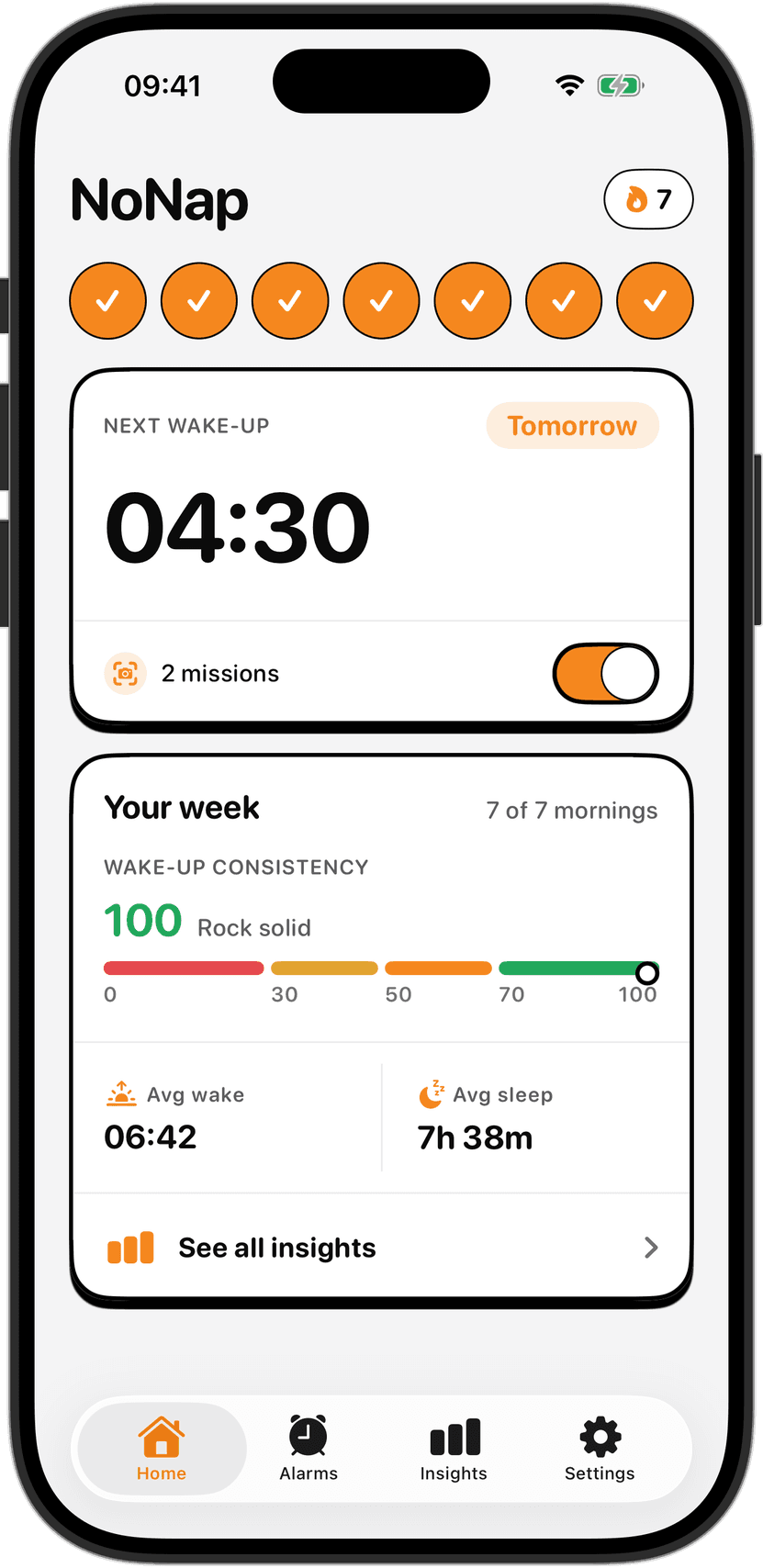
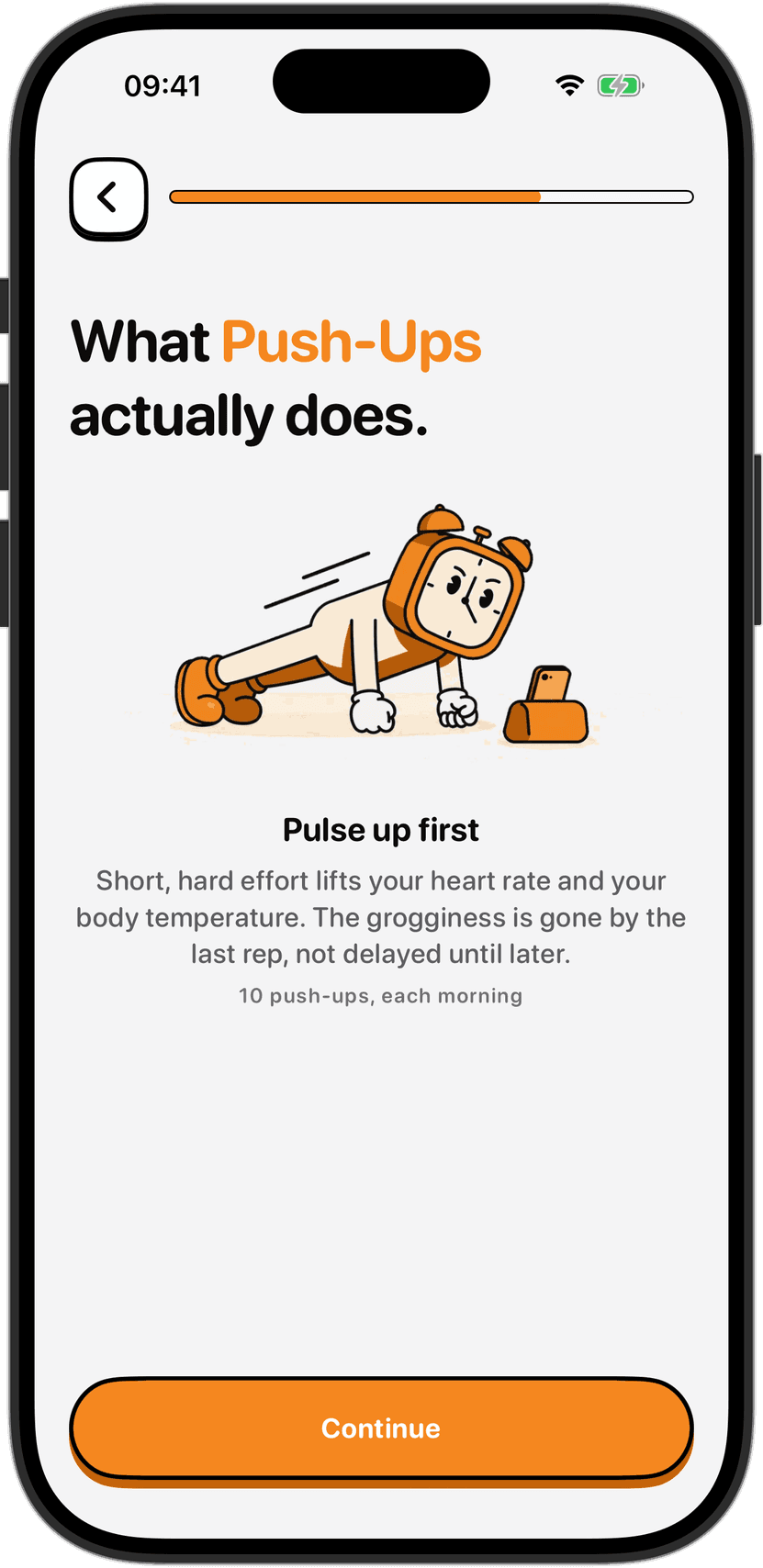
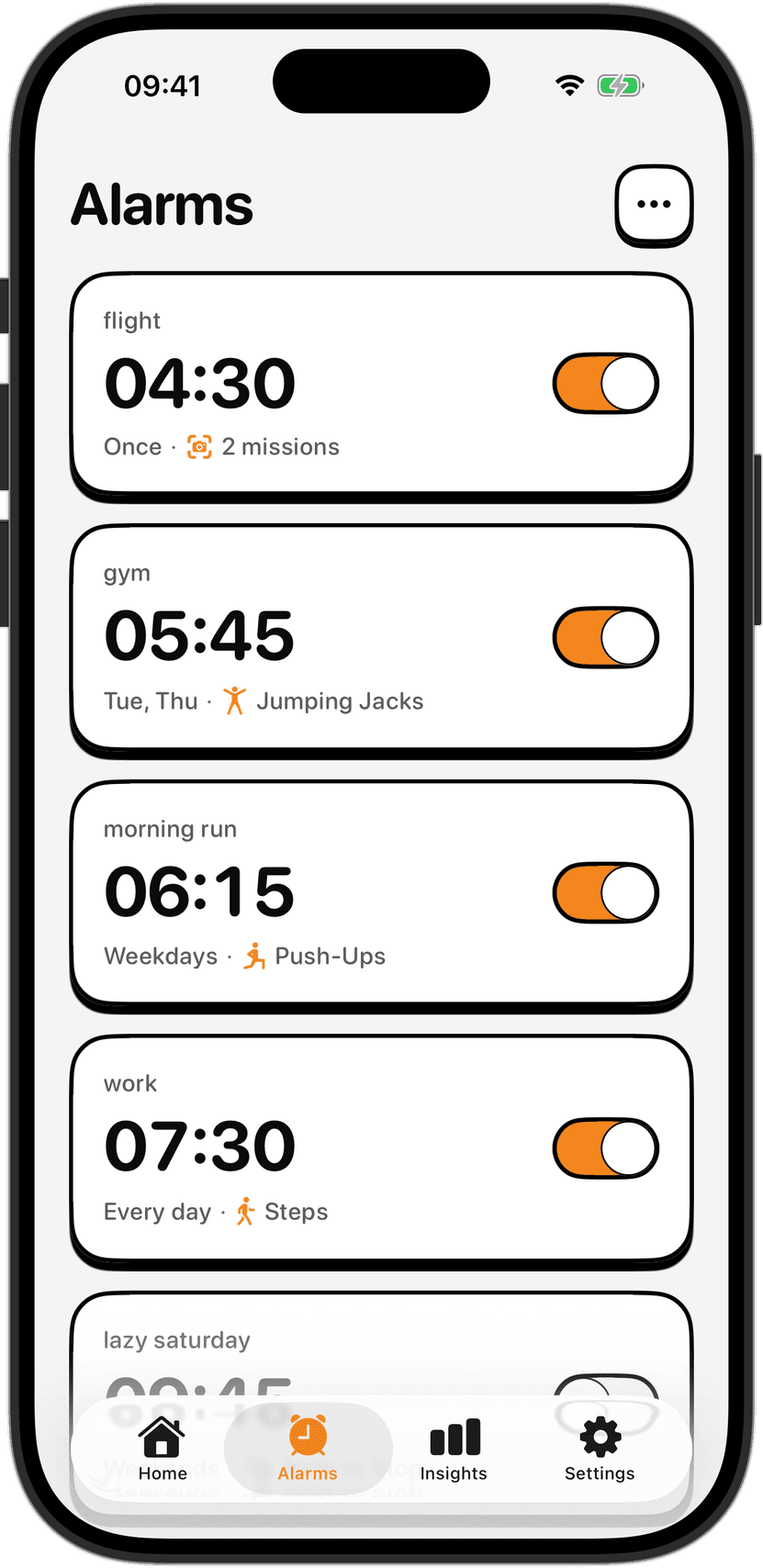
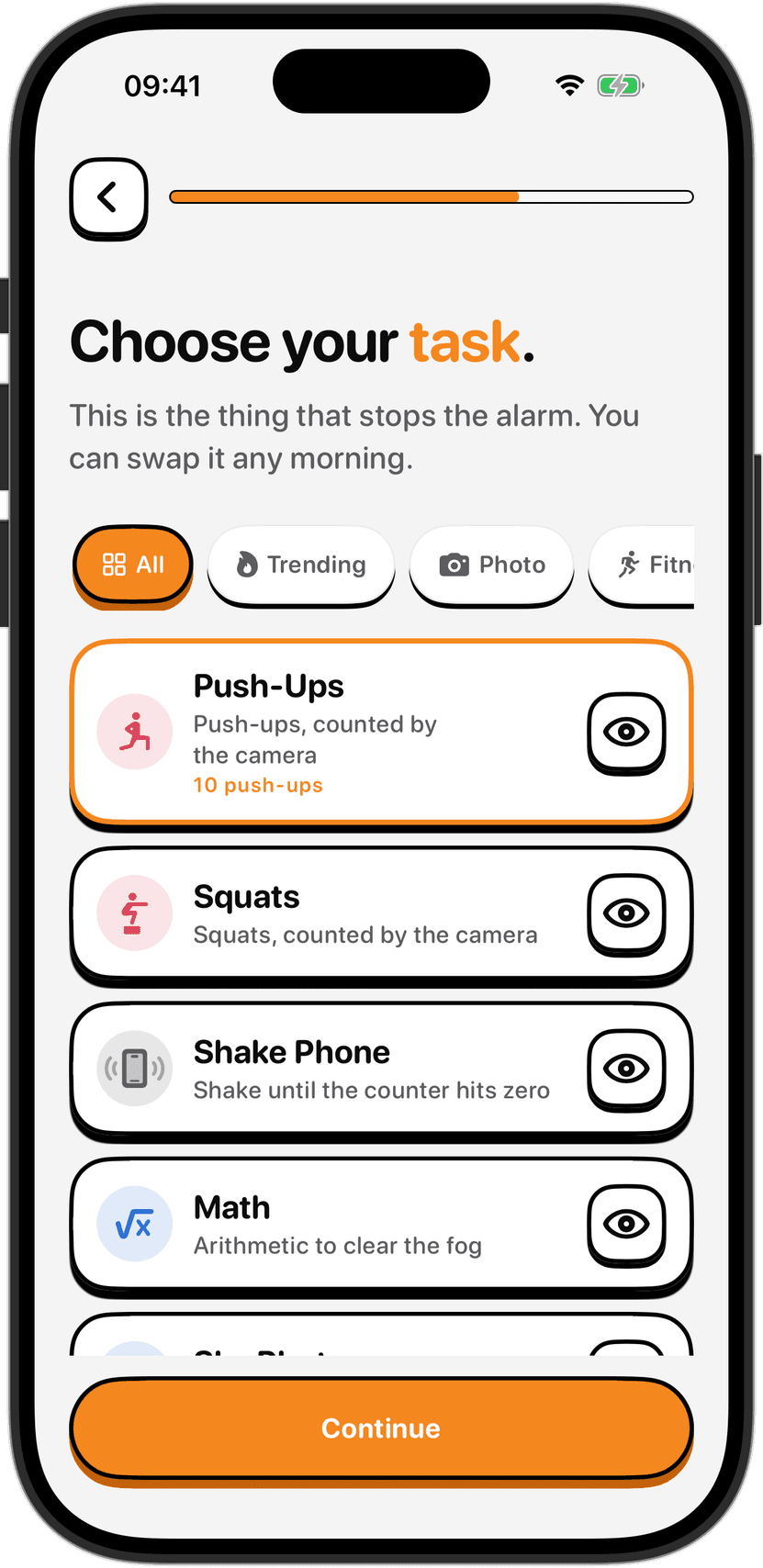
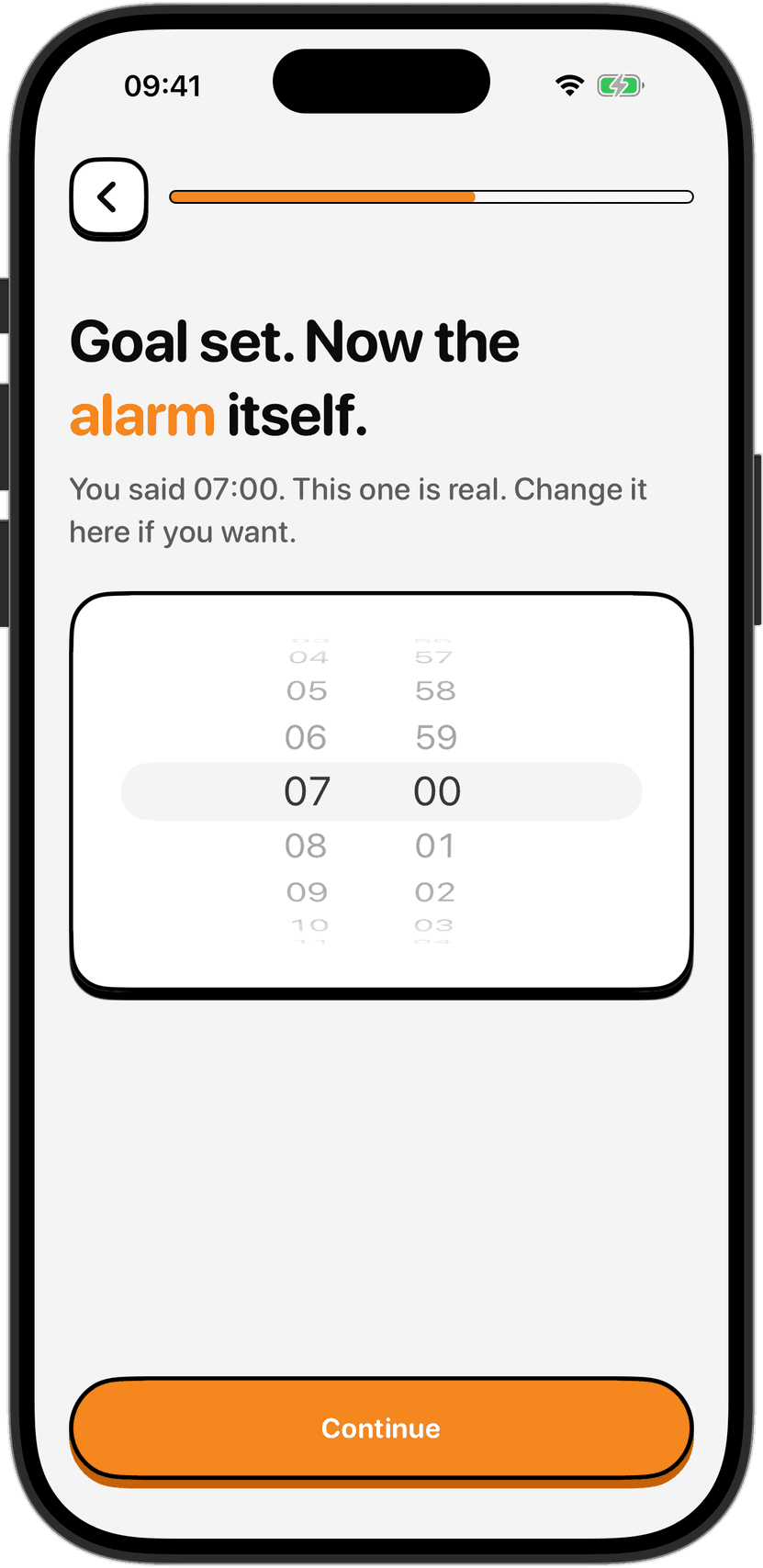
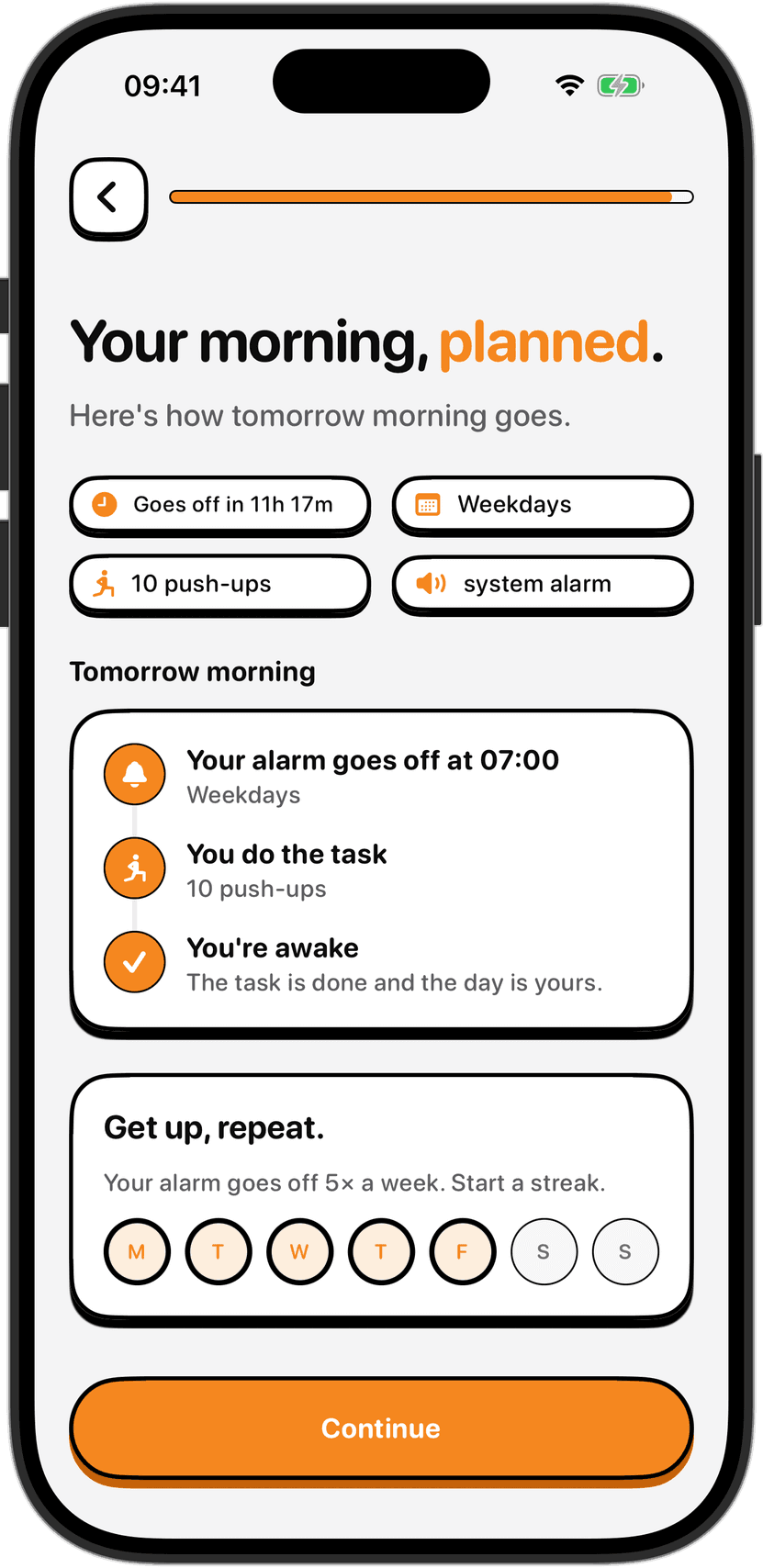
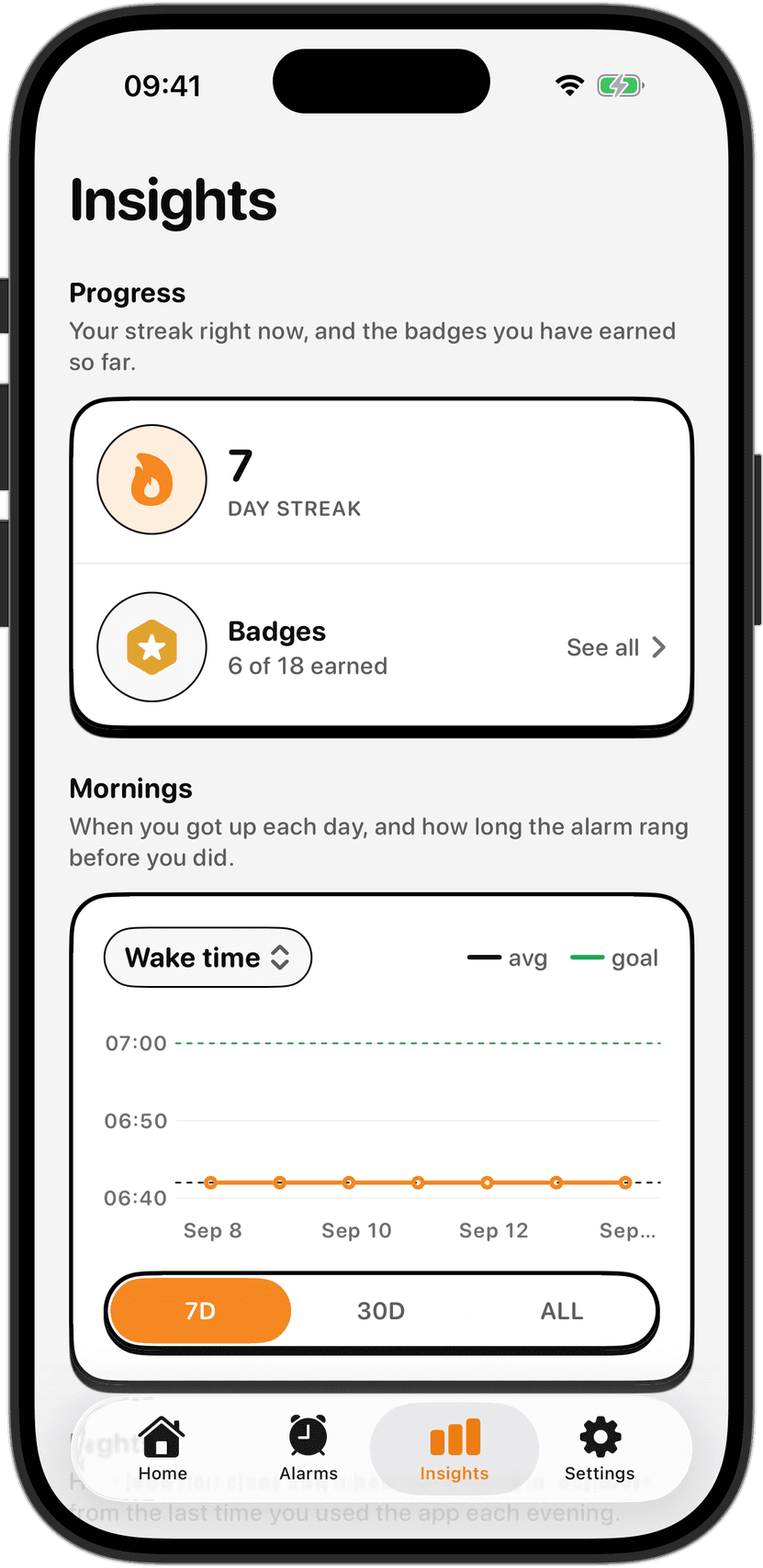
If you are looking for something to actually make you get out of bed, a task can help. Sleep inertia, the heaviness you feel in the first minutes after waking, can be pushed back by immediate physical effort or a puzzle to solve. NoNap is an iPhone alarm app designed around that idea. Instead of a snooze button, you finish a short wake task to stop the alarm: push-ups or squats counted by the camera, shaking your phone, a math problem, a photo, or getting out of bed. If you have an injury or a condition that makes exercise first thing risky, pick a different task. One alarm with no snooze button, the same system alarm your Sleep Schedule uses, and a wake task you picked the night before can turn a loose goal into an actual morning. The Sleep Schedule creates the rhythm. A task creates accountability.
Sources
Apple. Set up sleep on iPhone. Apple Support, accessed August 2026. support.apple.com/guide/iphone/set-up-sleep-iph2dc17a02/ios
Apple. Edit sleep schedules on iPhone. Apple Support, accessed August 2026. support.apple.com/guide/iphone/edit-sleep-schedules-iphd7c6b83b/ios
Apple. Turn Sleep Focus on or off. Apple Support, accessed August 2026. support.apple.com/guide/iphone/set-up-sleep-focus-iph3294dc5d/ios
Image credits
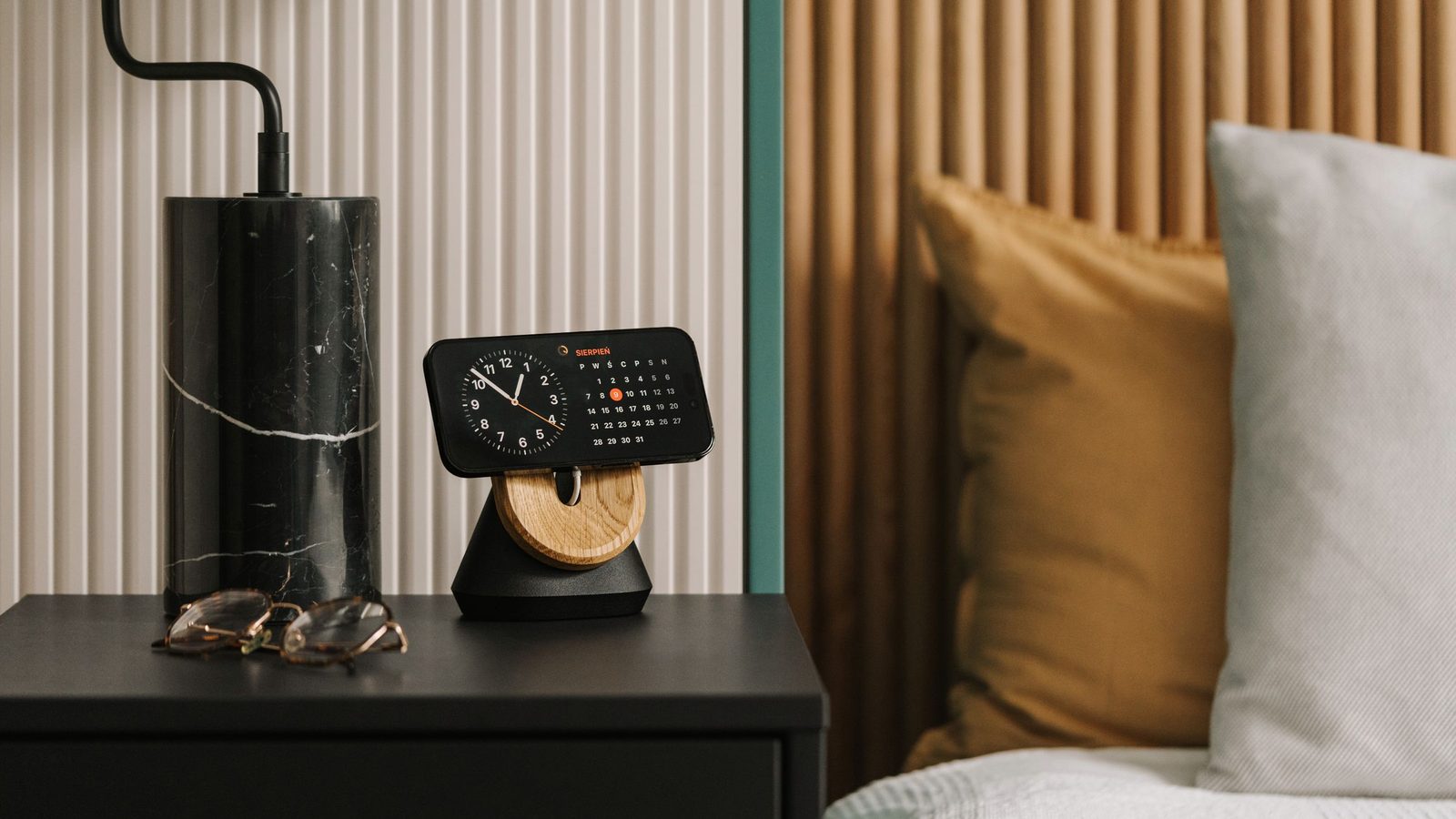
Cover photo of an iPhone in MagSafe stand on a bedside table from Pexels (pexels.com/photo/magsafe-iphone-stand-oakywood-19238582/), used under the Pexels License, which permits commercial use without payment.