Using StandBy on iPhone as a bedside clock
How iPhone's StandBy mode works when charging on its side, Night Mode's red display, always-on features, customizing it, and honest talk about phones in the bedroom.
Visana Studios
6 min read
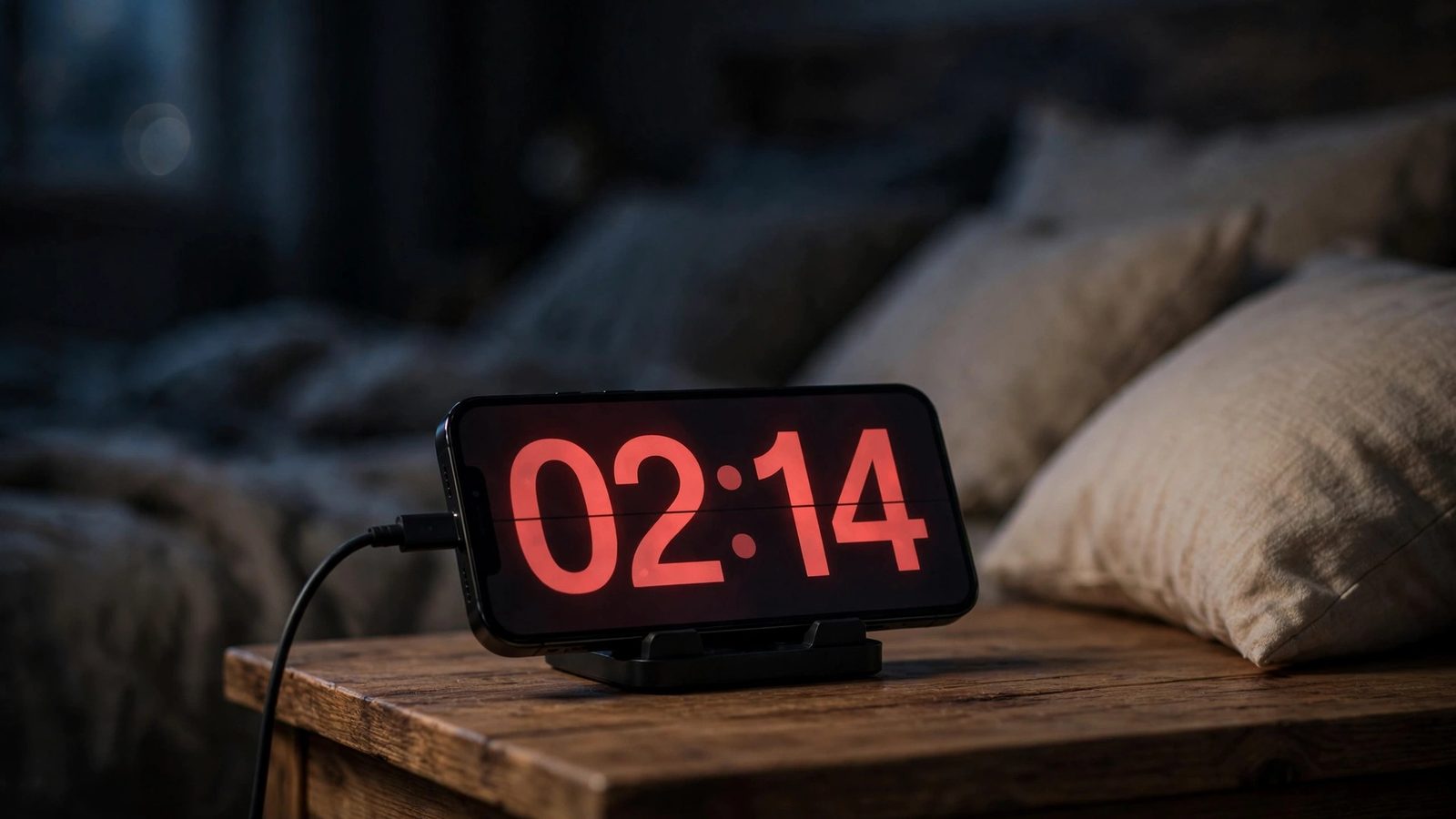
Your phone sits on the nightstand in landscape mode, plugged in, displaying the time in soft red. This is StandBy mode, Apple's lock screen experience for when your iPhone is charging. It is designed to work as a bedside companion, and it does that job well. The harder question is whether having your phone on the nightstand at all is a good idea when you are trying to sleep.
How StandBy works
StandBy is available on iPhone 14 and later, built into iOS 17 and beyond. To use it, you plug your iPhone into power and tilt it to horizontal orientation on a stand, dock, or just propped against something. The screen wakes and displays your chosen content in a large format optimized for viewing from across a room.
This is basically an always-on version of your lock screen. It shows whatever information you want to see without unlocking: a clock, a photo, calendar events, timers, or a mix of widgets. You cannot interact with it while in StandBy. Swiping or tapping just brings up the regular lock screen. The whole point is to glance and know what time it is, or whether an alarm is set, without unlocking your phone.
StandBy respects your Focus modes and Sleep Focus, so alarms still ring through. The display turns off if you pick up the phone or rotate it to portrait mode. It resumes when you return it to horizontal.
Night Mode and red light
The feature most suited to bedside use is Night Mode, available on iPhone 15 Pro and later models. When you enable it, the entire display shifts to red and amber tones, filtering out the blue light that suppresses melatonin and signals to your body clock that it is daytime.
The red display on newer iPhones serves the same purpose as the red light option on many sunrise alarm clocks. Your eyes do not find red light alarming the way they find blue or white light. If you glance at the time at 2 a.m., the impact on your ability to fall back asleep is smaller than if you had reached for your phone and gotten a full-brightness blue screen in your face.
Night Mode is not unique to StandBy. You can find it on the lock screen and throughout iOS on compatible models. But StandBy makes it practical to use all night, since you are not holding the phone and the display is static and designed for glancing rather than interaction.
If you have an iPhone 15 but not a Pro model, the lock screen offers a Dark Mode option, which is not red but reduces brightness and uses a dark background. It is better than standard mode at night, though less specialized than Night Mode on the Pro.
Always-on or sleep mode
On iPhone 14, StandBy shows a static display while charging in horizontal mode. On iPhone 14 Pro and later Pro models, Apple added an always-on variant that keeps the display lit continuously, like some Android phones do. With always-on StandBy, you never have to tap or move the phone to check the time. The display just stays dimly lit.
Always-on is great for the bedside, but it does use more battery. Apple limited it to charging only to avoid draining your battery in daily use. Overnight on a charger, this is fine. During the day on a desk, that constraint makes sense.
Customizing what you see
StandBy is configured through the lock screen settings. You choose a clock face or photo, then add up to four widgets depending on layout. Popular bedside choices are the time, a calendar or event list, a weather widget, or just a favorite photo large enough to fill the screen. Widgets update in real time but only when the phone is already showing StandBy. They do not wake the display to refresh.
You can also create multiple StandBy configurations and switch between them with a long press on the lock screen. Many people set up one for nighttime with a simple red clock and nothing else. Another for daytime charging might include more information.
The honest part: phones in the bedroom
StandBy is genuinely useful as a bedside clock. It is easier than an old-fashioned bedside alarm clock because it is your alarm anyway, and you know immediately whether the alarm is set for tomorrow morning. It shows the time without requiring you to turn on a lamp. The red Night Mode display is thoughtful design for nighttime use.
The problem is that this does not mean having a phone next to your bed is unambiguously good for sleep.
Research on screens and sleep is clear: the light from a phone disrupts melatonin production and makes falling asleep harder, particularly blue light. What you see on your screen before bed matters for sleep. Even with Night Mode on, if you pick up the phone to check a notification or just because you cannot sleep, you are interacting with a device designed to hold your attention. StandBy itself is passive. You cannot use it without unlocking the phone. But the presence of the phone enables the habit of reaching for it at night.
There is another risk that people rarely discuss: sleep fragmentation. If you wake at 2 a.m. and your phone is right there, you might check the time, check notifications, or scroll. You fall back asleep later than if the phone had not been visible. The mental activation of checking a phone, even for 30 seconds, can extend the time it takes to return to deep sleep.
Your wake time is what really matters. If you have an alarm set and you actually need to be up at a certain hour, you want to know in that half-asleep state whether you have time for more sleep or whether you have to get up. That is a legitimate use of a bedside timepiece. That is different from having the phone there "just in case." The "just in case" turns into reaching for it when you cannot sleep, which makes the not sleeping worse.
One option is to keep the phone charging in another room, with your alarm set in an app that rings through Focus modes to make sure you wake up on time. If you do keep it on the nightstand, use StandBy's simple configurations. A clock and nothing else works best. Resist the urge to unlock it in the middle of the night. Night Mode and always-on displays were designed with that restraint in mind.
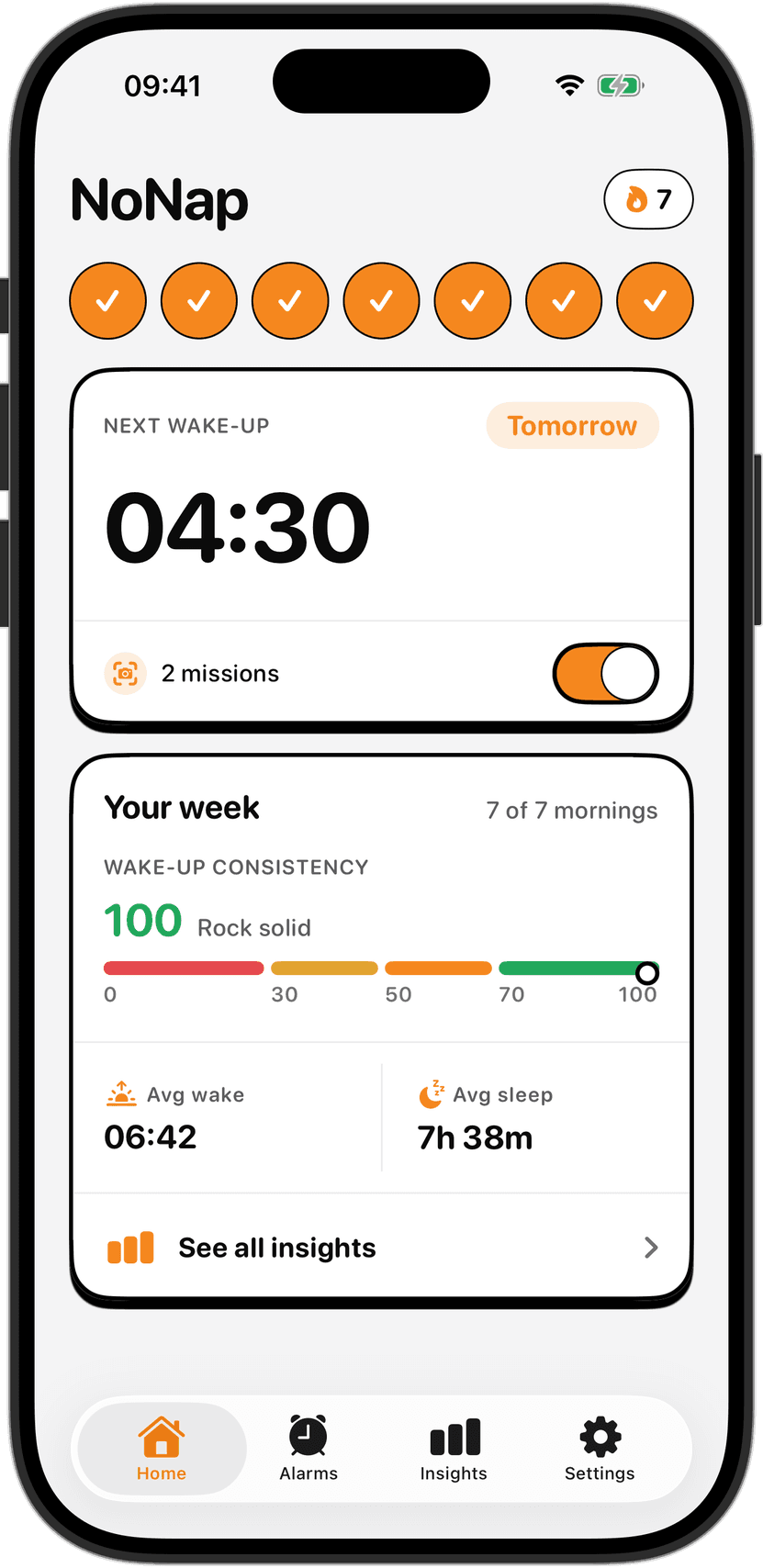
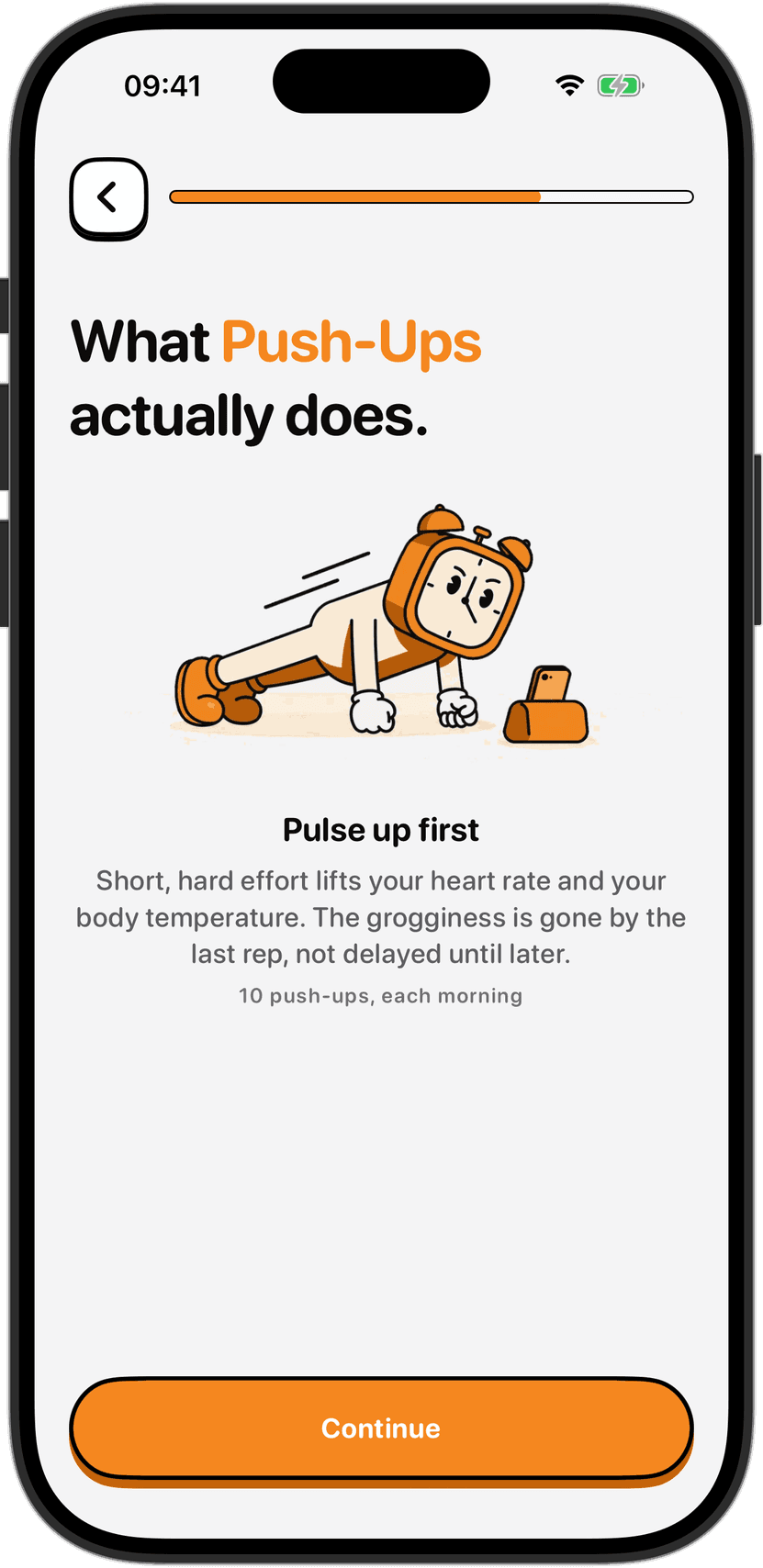
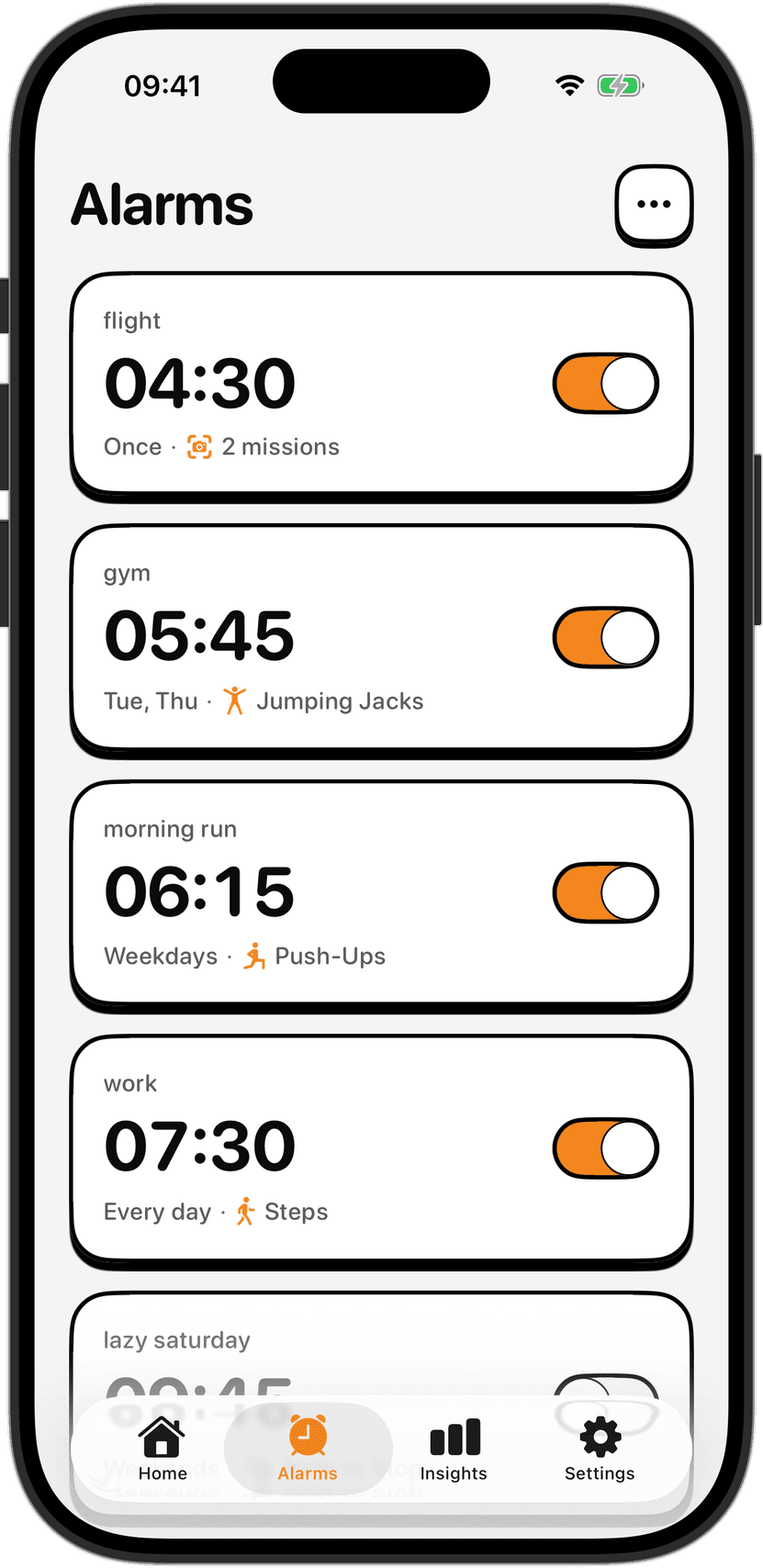
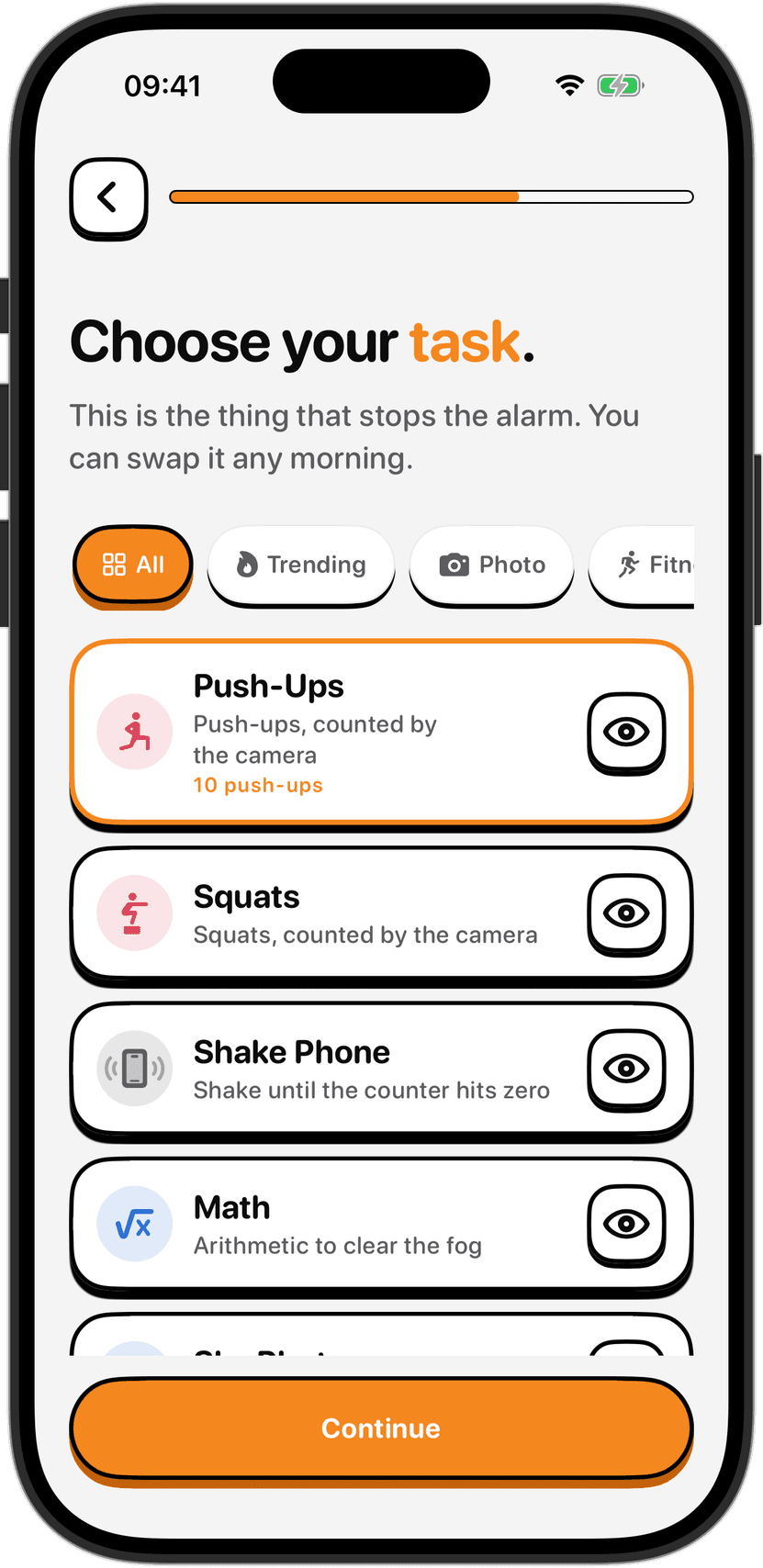
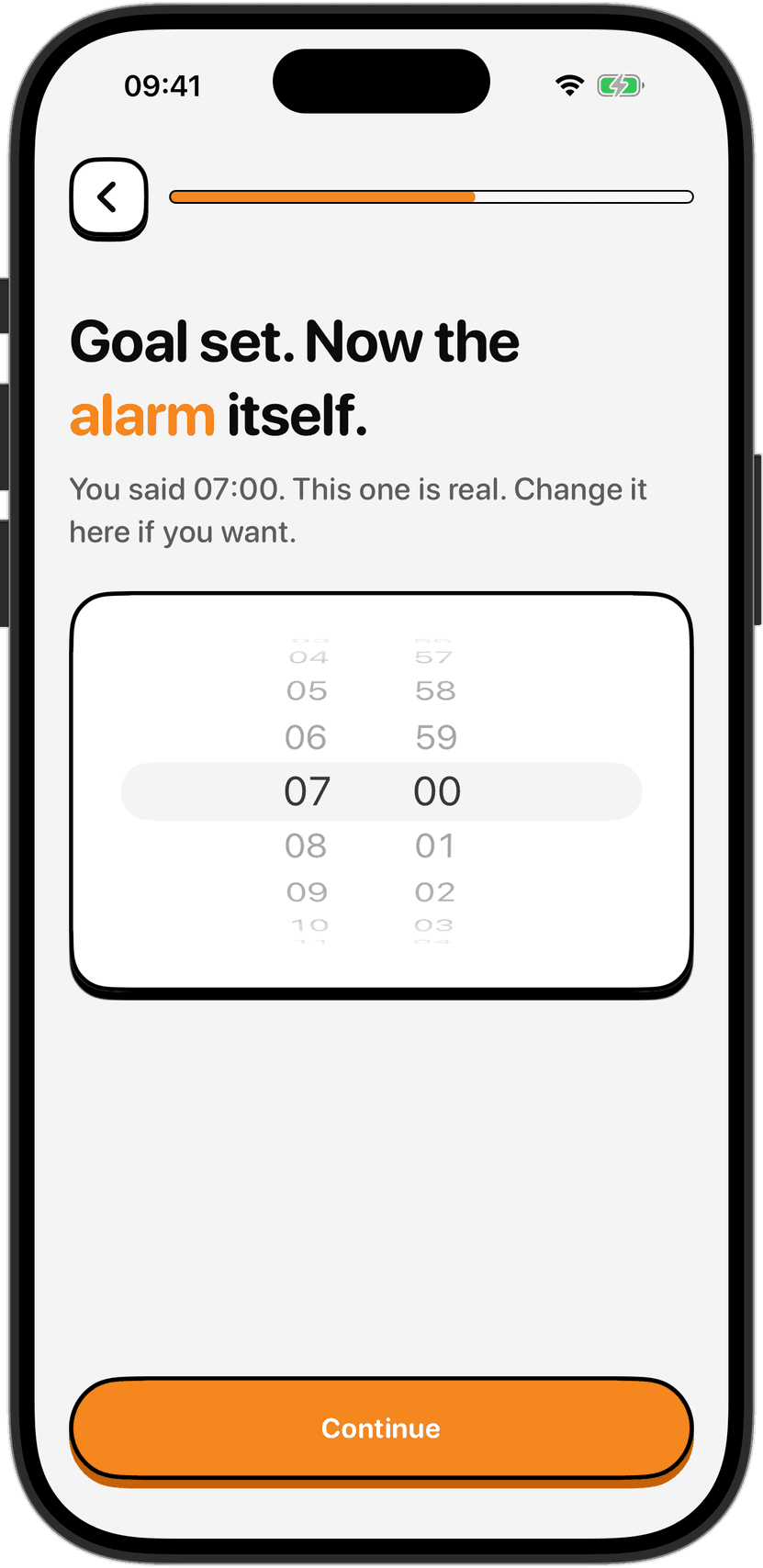
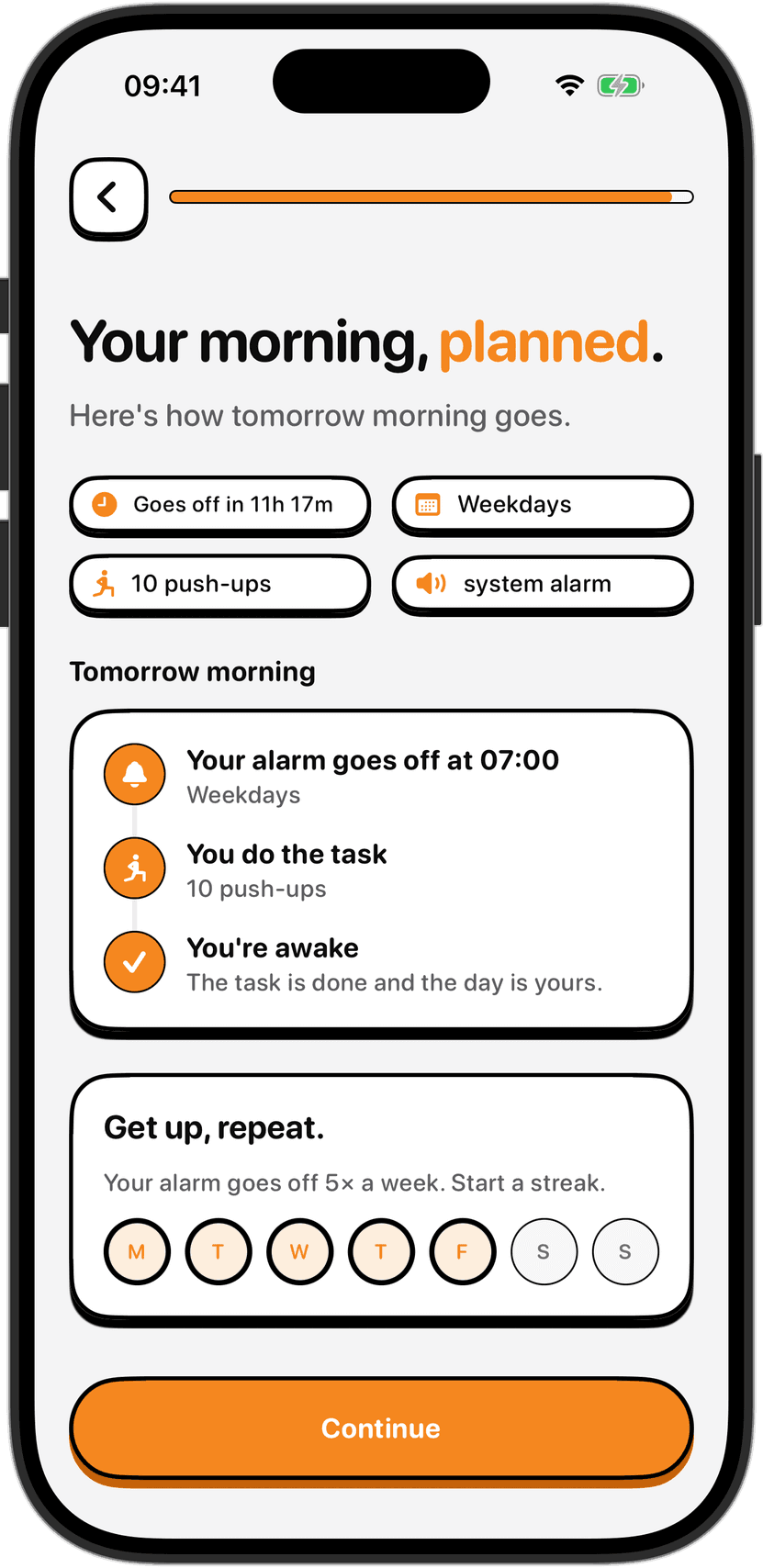
For a reliable morning alarm that does not depend on your phone being within arm's reach, consider how you set up Sleep Schedule on your iPhone. NoNap uses the system alarm on iPhone, the same one the Clock app uses. It rings through Focus modes and Sleep Focus, and it cannot be dismissed from the lock screen. You pick a wake task: push-ups or squats counted by the camera, shaking the phone, math, or a photo. Finish it in the morning. If intense exercise first thing is not for you, Shake Phone or Math are gentler options. That structure means your phone can be anywhere and you will still wake up on time.
Sources
Apple Support. iPhone User Guide: Use StandBy. Accessed September 2026. https://support.apple.com/en-us/guide/iphone
Gooley, J. J., Chamberlain, K., Smith, K. A., et al. (2011). Exposure to room light before bedtime suppresses melatonin onset and shortens melatonin duration. Journal of Clinical Endocrinology and Metabolism, 96(3), E463-E472.
Münch, M., Kobialka, S., Steiner, R., et al. (2006). Wavelength-dependent effects of evening light exposure on sleep architecture and sleep EEG power density in men. American Journal of Physiology-Regulatory, Integrative and Comparative Physiology, 290(5), R1090-R1098.
Sleep Foundation. The Effects of Blue Light on Sleep. Accessed September 2026. https://www.sleepfoundation.org/bedroom-environment/blue-light